Text to image · Image edit · 5 credits per image

Grok Imagine Image 2.0 for precise image creation and editing

Grok Imagine Image 2.0 is xAI's latest image model, built for more precise generation and editing across photography, design, illustration and other visual styles. It follows detailed creative instructions more closely, handles typography and complex layouts with greater clarity and keeps important visual details during iterative edits. Every Grok Imagine Image 2.0 image costs 5 credits, whether you generate from a prompt or edit up to 5 reference images.

5 credits per image for text to image and editing

Grok Imagine Image 2.0

Grok Imagine Image 2.0 for precise image creation and editing

Ideogram 4 Creative Generator

Updating credit quote…

1K images cost 5 credits, 2K cost 12 credits, and 4K cost 20 credits.

Available ratios follow the selected model.

100 / 8000
Cost 5 creditsRemaining 0 credits
Tasks & creations
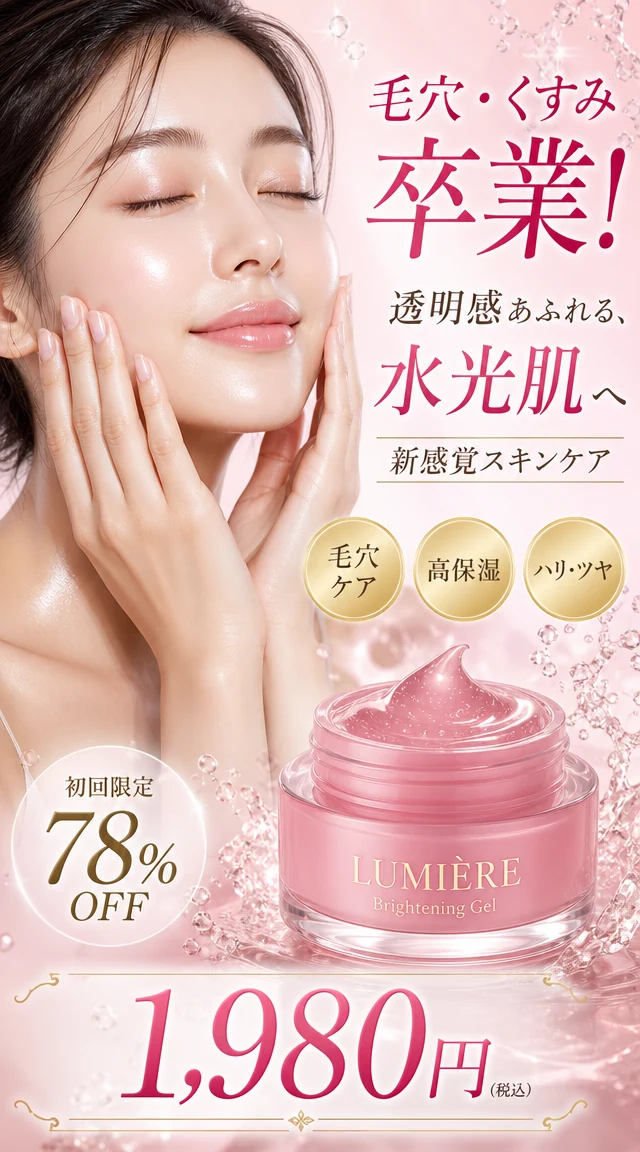
Japanese skincare ad prompt preview

No works generated yet

Enter a prompt and your generated image will appear here.

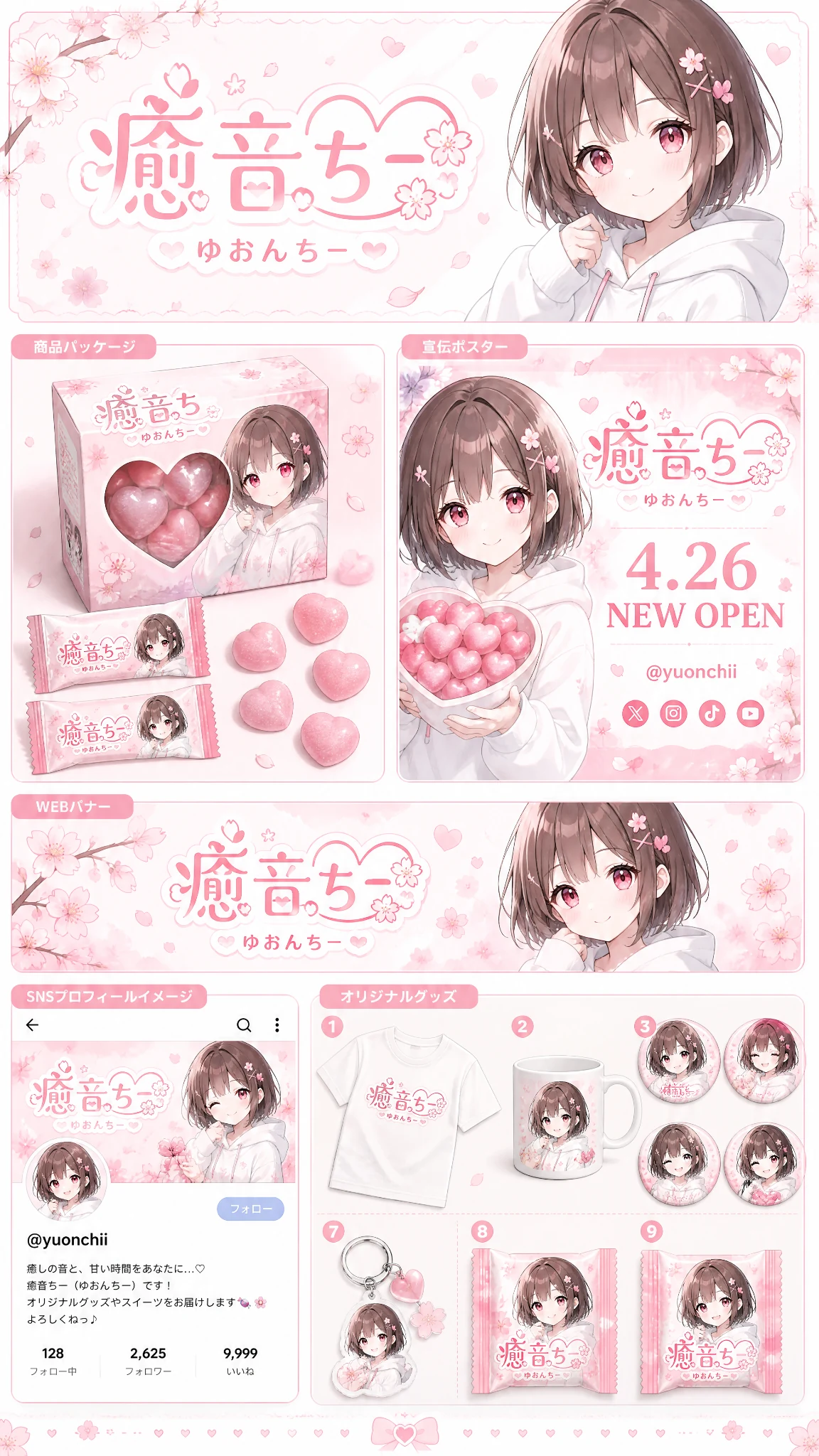
Anime brand identity prompt preview

No works generated yet

Enter a prompt and your generated image will appear here.

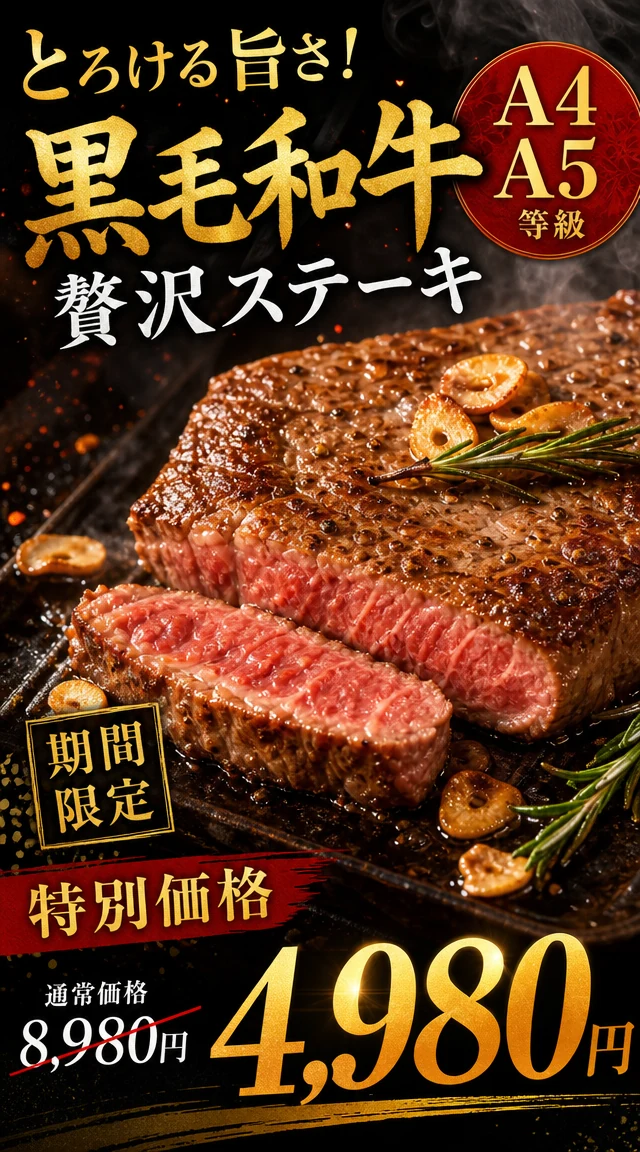
Japanese wagyu steak ad prompt preview

No works generated yet

Enter a prompt and your generated image will appear here.

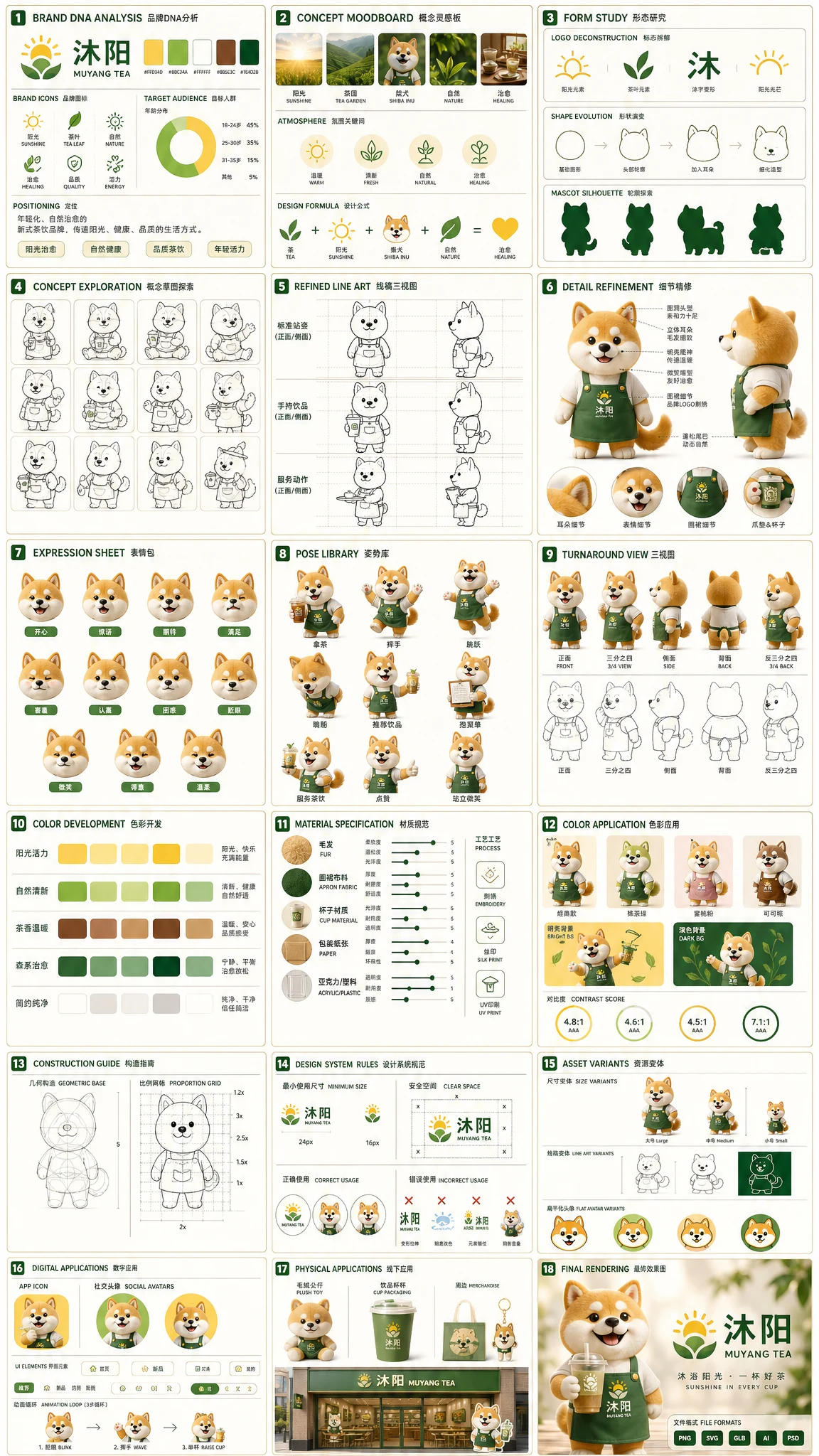
Tea brand mascot prompt preview

No works generated yet

Enter a prompt and your generated image will appear here.

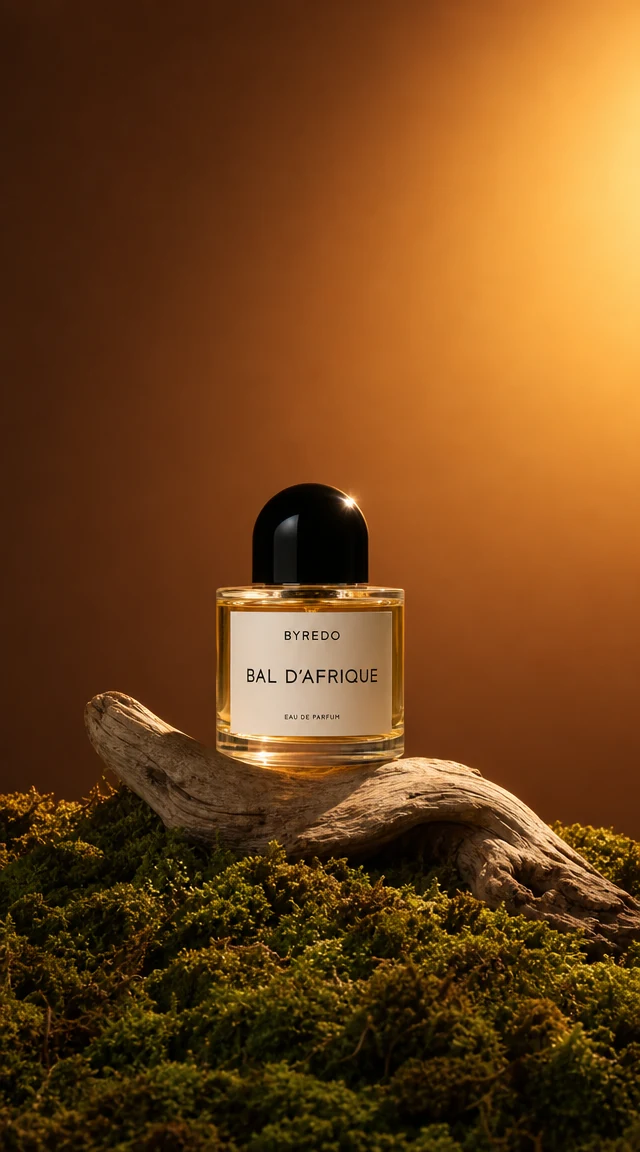
Luxury perfume prompt preview

No works generated yet

Enter a prompt and your generated image will appear here.

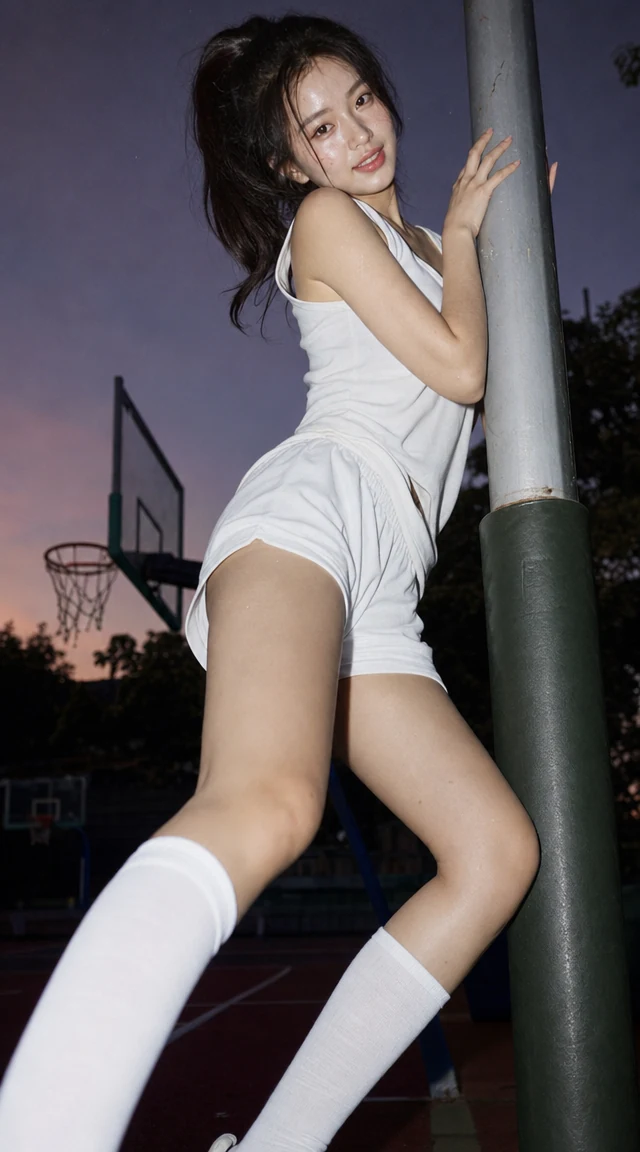
Basketball portrait prompt preview

No works generated yet

Enter a prompt and your generated image will appear here.

What makes Grok Imagine Image 2.0 stand out

Grok Imagine Image 2.0 is designed for layered prompts. A single request can combine subjects, environments, composition, visual style, written text and small scene details, and the model is built to keep those secondary requirements visible instead of losing them as the image becomes more detailed. That makes Grok Imagine Image 2.0 a strong choice for posters, infographics, editorial graphics and illustrated guides where many elements have to fit together.

In the Grok Imagine Image 2.0 workspace you can generate a new image from a prompt or switch to image to image and upload up to 5 pictures to transform. Reference images can guide changes to subjects, environments, colors, styles, objects and composition, while improved editing precision helps avoid unnecessary changes elsewhere in the image. Choose square, portrait or landscape framing, and when editing you can also let the model keep the original frame automatically.

A practical habit is to write your prompt like a short creative brief: say what the image is for, list the elements that must appear, give the exact words in quotation marks and describe the mood. Grok Imagine Image 2.0 rewards that kind of structure, and because every image costs the same, it is easy to try one brief in several variations and keep the version that reads best.

Below you will find six strengths of Grok Imagine Image 2.0, a comparison of its two workflows, a three-step guide and answers to common questions.

Six strengths of Grok Imagine Image 2.0

These examples come from xAI's own Grok Imagine Image 2.0 showcase and show abilities you can use in the workspace above.

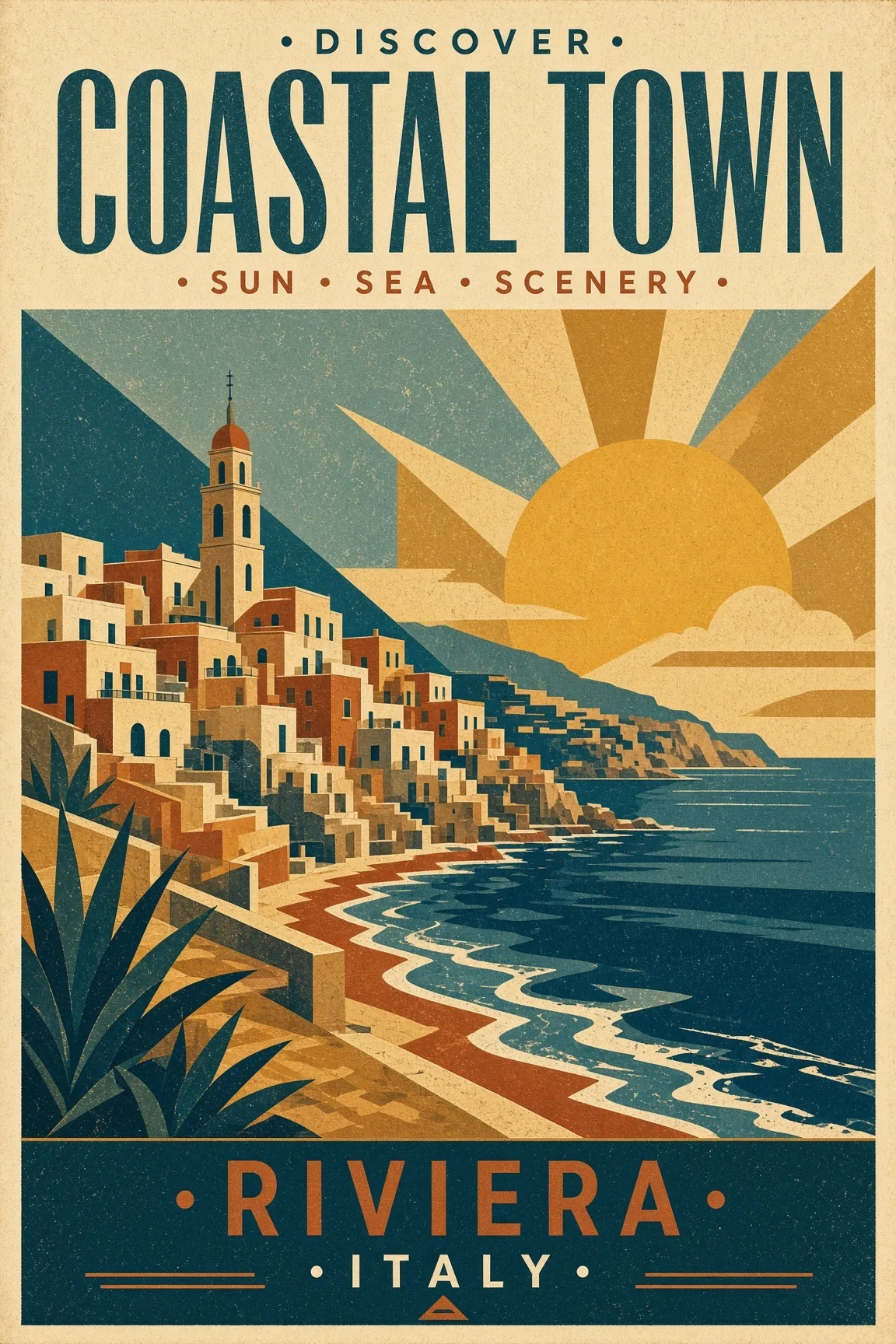
Grok Imagine Image 2.0 vintage travel poster of a Riviera coastal town

Sharper typography in posters

Posters and other text-rich visuals benefit from improved typography in Grok Imagine Image 2.0. The model treats written elements as part of the overall composition, so a bold title, a tagline and supporting lines work together with the imagery. A vintage travel poster with a clear town name is exactly the kind of design Grok Imagine Image 2.0 handles well.

  • Headlines and supporting text are composed together with the artwork.
  • Put exact words in quotation marks for reliable spelling.
  • Retro, modern and editorial lettering styles all come from the prompt.
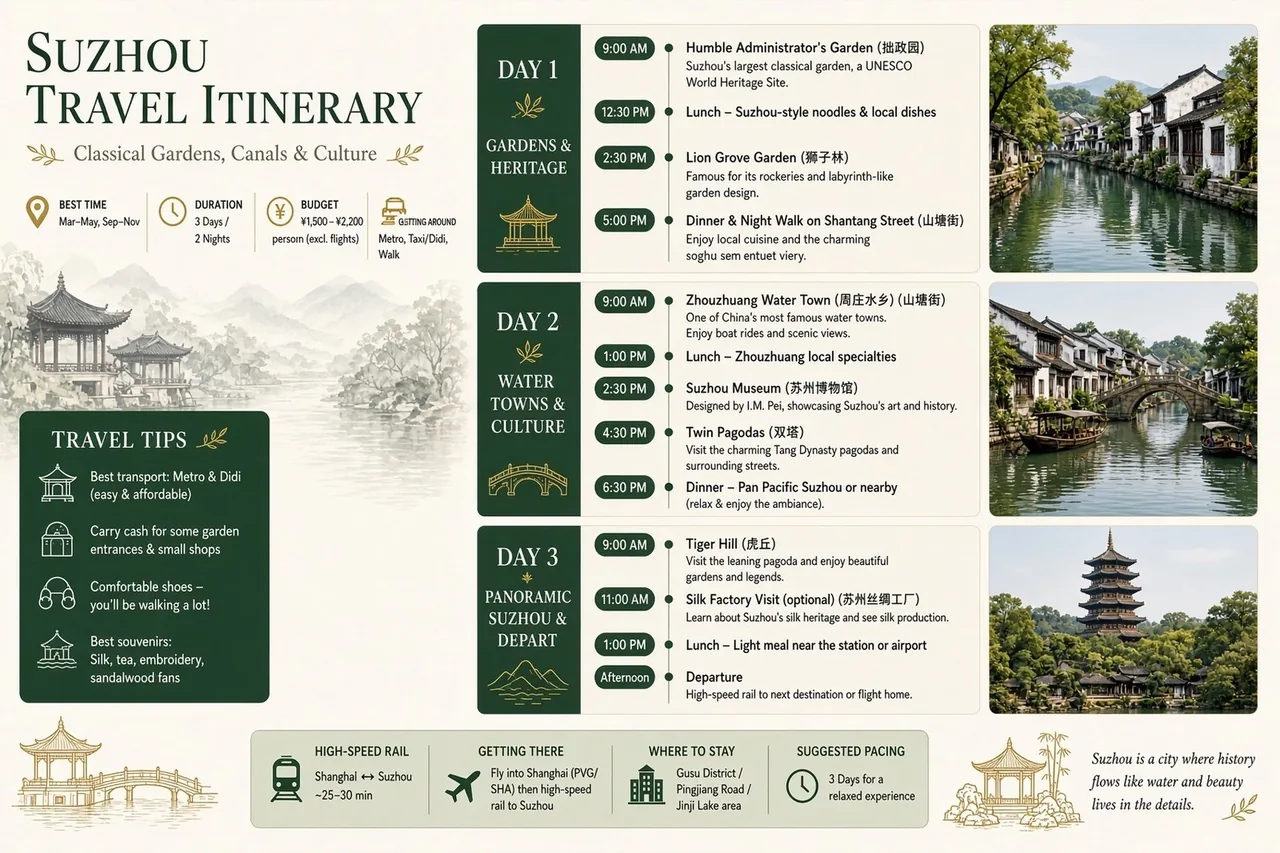
Grok Imagine Image 2.0 illustrated Suzhou travel itinerary infographic

Structured layouts and infographics

Grok Imagine Image 2.0 brings more structured layout planning to infographics, guides and editorial graphics. Ask for a three-day itinerary, a recipe guide or an explainer, and the model arranges sections, headings, small images and tips into a readable page. Grok Imagine Image 2.0 keeps the hierarchy clear even when the layout is busy.

  • Sections, headings and captions follow a clear reading order.
  • Small illustrations and photos sit inside the layout where they belong.
  • Travel guides, recipes and explainers come out ready to read.
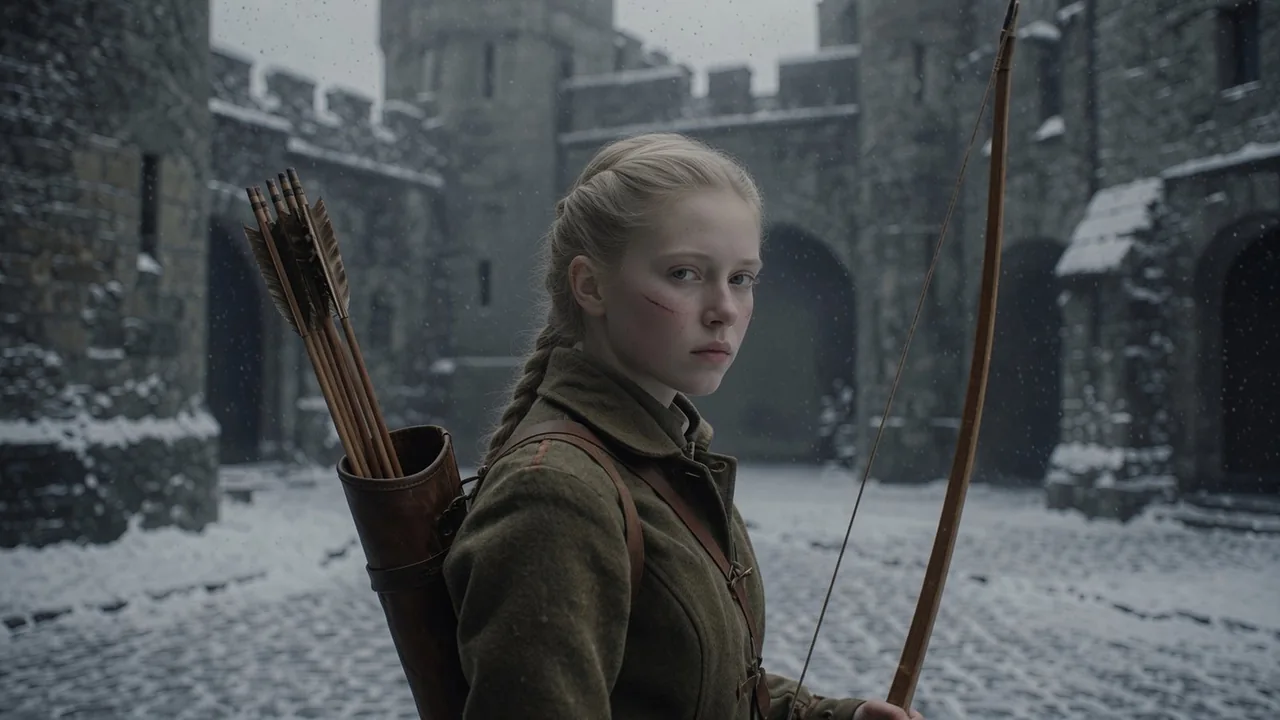
Grok Imagine Image 2.0 archer character in a snowbound castle courtyard

Consistent characters and visual worlds

Related generations can keep recognizable characters, environments, props and style from one image to the next. Upload a character or a scene as a reference and Grok Imagine Image 2.0 carries its look into new moments, which makes it easier to build connected assets for games, stories and campaigns. Several references can also contribute different parts of one image.

  • Upload up to 5 references for characters, outfits, places or props.
  • Keep a hero's face, clothing and setting steady across scenes.
  • Combine separate references into one unified composition.
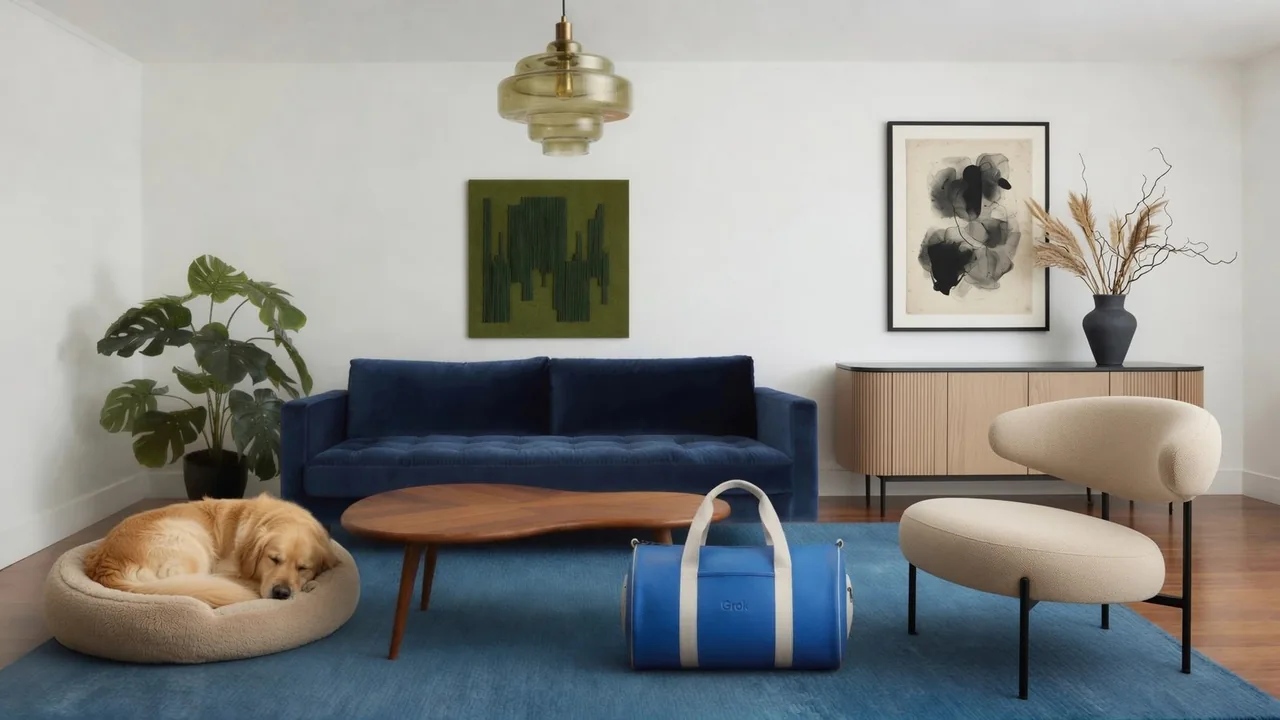
Grok Imagine Image 2.0 scene recomposed to a 16:9 widescreen frame

Reframe a finished image for new formats

A finished image can be adapted to another format without relying only on cropping. Upload the image, choose a new frame such as 16:9 or 9:16 and ask Grok Imagine Image 2.0 to extend and recompose the surrounding scene. The central subject stays in place while the frame changes to suit a banner, a story or a feed post.

  • Switch between square, portrait 2:3 and 9:16, and landscape 3:2 and 16:9.
  • Ask the model to extend the scene instead of cutting it off.
  • The main subject and visual direction are preserved.
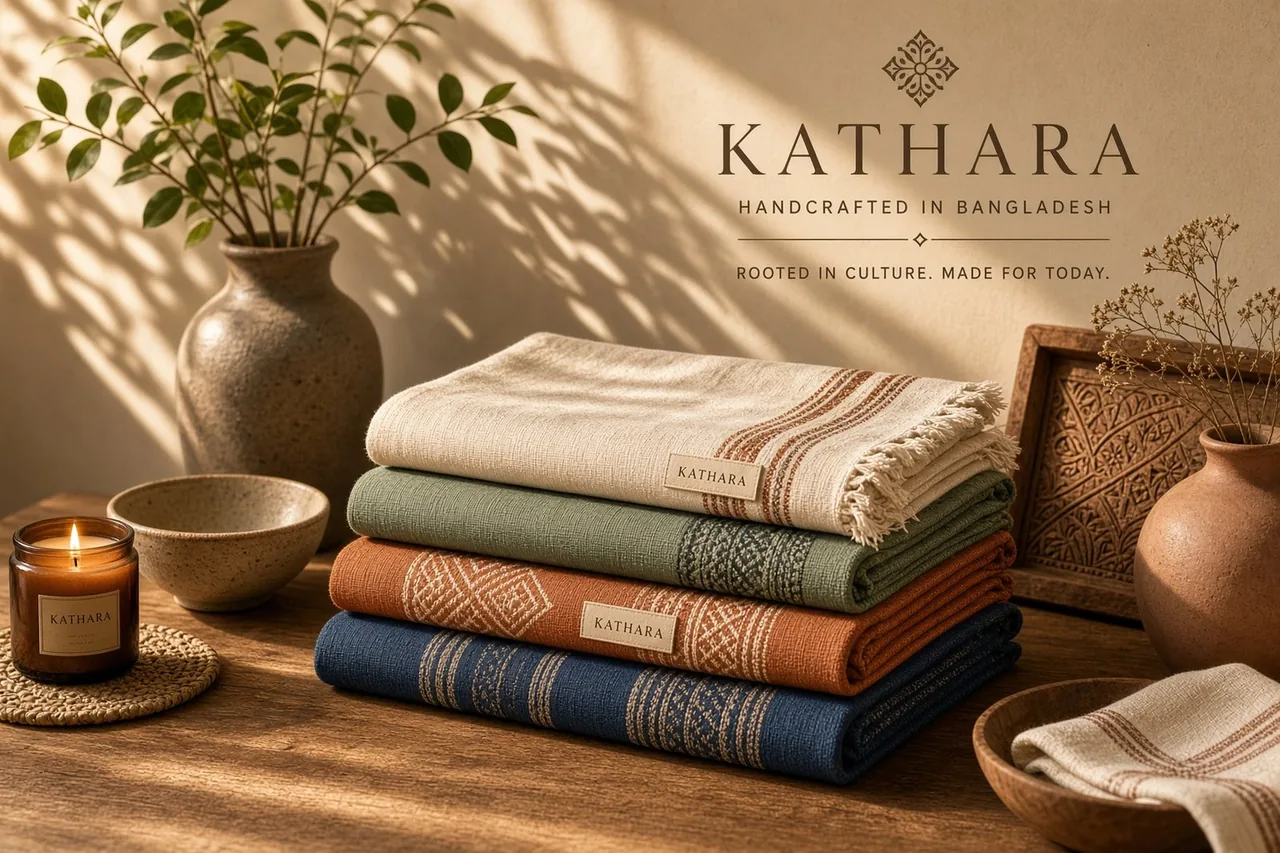
Grok Imagine Image 2.0 product photo of handwoven textiles on a wooden table

Precise edits that keep the rest

Grok Imagine Image 2.0 improves editing precision, so you can change what matters and leave everything else alone. Swap the background of a product photo, change the color of an object or add a prop, and Grok Imagine Image 2.0 avoids rebuilding the whole picture. Product photos, lifestyle scenes and portraits all keep their character after the edit.

  • Describe the change in plain words, such as replace the table with marble.
  • Unchanged areas keep their texture, light and detail.
  • Iterate edit by edit without the image drifting away.
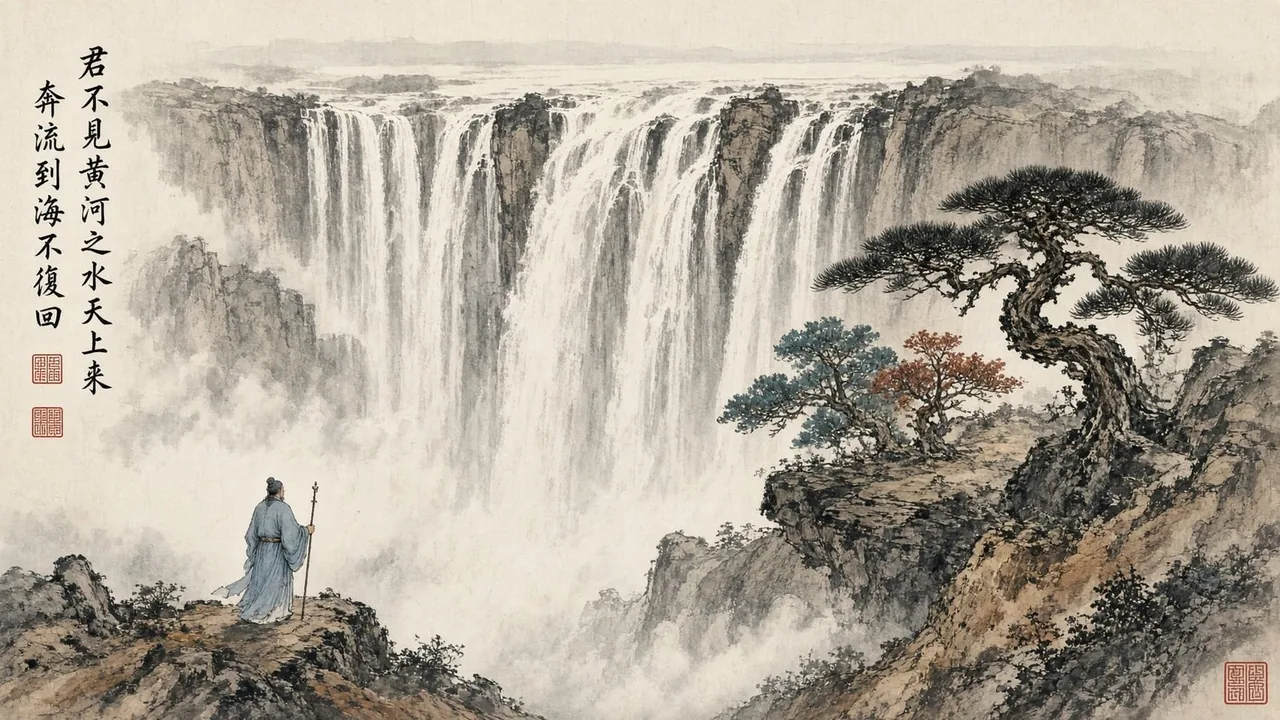
Grok Imagine Image 2.0 classical Chinese ink painting of a waterfall

Photography, illustration and painting

Grok Imagine Image 2.0 works across photography, design, illustration and fine-art styles. Realistic product shots, illustrated scenes and a classical Chinese ink painting can all come from the same model. Name the medium and the mood, and Grok Imagine Image 2.0 follows the style while keeping the subject and the composition you described.

  • Realistic photography for products, people and places.
  • Illustration, game art and editorial design from the prompt.
  • Traditional media such as ink, oil and watercolor.

Grok Imagine Image 2.0 workflows compared

Both workflows use the same Grok Imagine Image 2.0 model and the same price. Pick the one that matches your starting point.

Text to imageImage edit
Starting pointA written prompt1 to 5 uploaded images plus a prompt
Credits per image55
Square1:11:1
Portrait2:3 and 9:162:3 and 9:16
Landscape3:2 and 16:93:2 and 16:9
Keep original frameNot applicableAuto
Upload formatNo upload neededJPEG, PNG or WEBP, up to 25 MB each
Typography and layoutsPosters, infographics, guidesChange or add text on an existing design
ConsistencyNew scenes from a descriptionKeeps characters, products and places from your references
Typical changeCreate a full compositionSwap backgrounds, objects, colors or style
ReframingChoose the frame before generatingRecompose a finished image to a new frame
Best forNew campaigns and concept artRefining, localizing and extending existing visuals

How to use Grok Imagine Image 2.0

Three steps take you from a brief to a finished Grok Imagine Image 2.0 image.

  1. 1

    Write a brief or upload

    Describe the subject, the setting, the style and any exact text in quotation marks. To edit, switch to image to image and upload up to 5 pictures for Grok Imagine Image 2.0.

  2. 2

    Choose the frame

    Pick square, portrait or landscape. When editing, you can choose auto to keep the original frame. Every Grok Imagine Image 2.0 image costs 5 credits, shown before you generate.

  3. 3

    Generate and refine

    Generate, review and describe the next change. Grok Imagine Image 2.0 keeps important details during iterative edits, so small, clear steps lead to the best result.

Grok Imagine Image 2.0 frequently asked questions

What is Grok Imagine Image 2.0?

Grok Imagine Image 2.0 is xAI's latest image generation and editing model. It focuses on detailed prompt understanding, improved typography, precise editing, multi-reference generation and stronger consistency across images.

Can I try Grok Imagine Image 2.0 for free?

Yes. New accounts receive free starter credits after a quick account check. At 5 credits per image, that is enough to try Grok Imagine Image 2.0 several times.

How many credits does Grok Imagine Image 2.0 use?

Each Grok Imagine Image 2.0 image costs 5 credits, for both text to image and image edit.

What is new compared with earlier Grok image models?

Grok Imagine Image 2.0 improves instruction following, editing control, text rendering, layout understanding and visual consistency, so results are easier to refine and reuse in real projects.

Can Grok Imagine Image 2.0 put text in images?

Yes. Grok Imagine Image 2.0 improves typography and layout handling, which makes it suitable for posters, infographics, editorial graphics and guides.

Can Grok Imagine Image 2.0 edit existing images?

Yes. Upload up to 5 images and describe the change. Grok Imagine Image 2.0 can transform style, environment, objects and other elements while keeping the important parts of the original.

Does Grok Imagine Image 2.0 support multiple references?

Yes. Up to 5 images can contribute characters, objects, environments or styles to one new image in the Grok Imagine Image 2.0 workspace.

Which aspect ratios are available?

Grok Imagine Image 2.0 offers 1:1, 2:3, 3:2, 16:9 and 9:16. Image edit also offers auto, which keeps the frame of your upload.

Can I choose the resolution?

Grok Imagine Image 2.0 does not offer separate resolution levels here; you choose the aspect ratio and the model returns its standard size for that frame.

Can I use Grok Imagine Image 2.0 images commercially?

Commercial use depends on your plan, the references you upload and the rights attached to your prompts and assets. Check that you may use any brands or people that appear.

Why was my upload rejected?

Grok Imagine Image 2.0 accepts 1 to 5 JPEG, PNG or WEBP images of up to 25 MB each. Other formats, larger files or more than 5 images are rejected with a message that explains why.

Bring your brief to life with Grok Imagine Image 2.0

Write a clear brief or upload your references, choose a frame and let Grok Imagine Image 2.0 deliver a precise, well-composed image. Refine it step by step until it is ready.

Try Grok Imagine Image 2.0 free