GPT Image 2.6 Flare
Choose Flare for fast everyday image creation, from creator and social content to product concepts and rapid visual exploration. It is the practical starting point when iteration speed matters.


Image creation and editing with three ways to work. Use Flare for quick layouts, Sunburst for careful refinement, or Economy for 1K everyday visuals. Start from a prompt or up to 16 reference images.
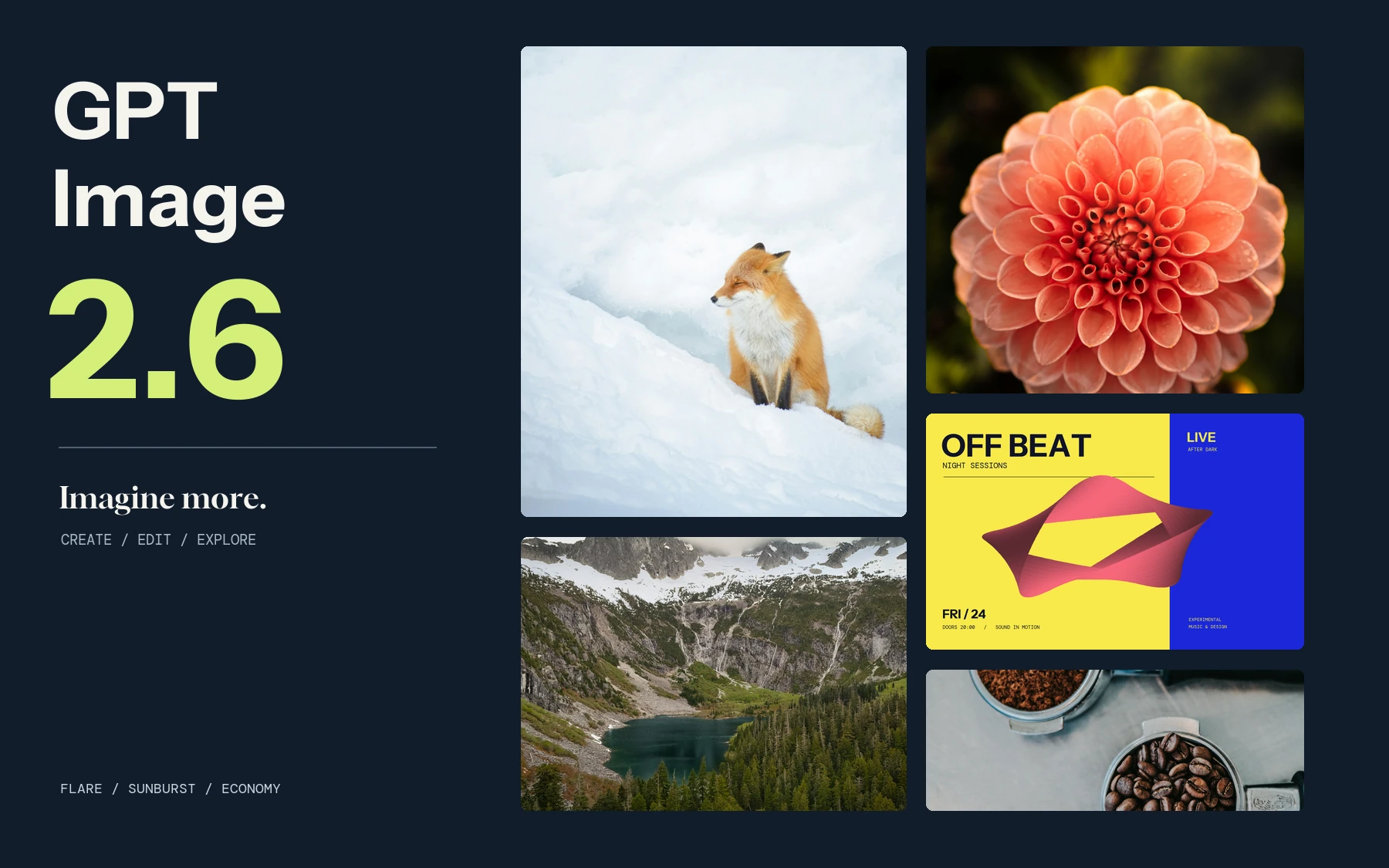
Credits are reserved from an estimate and settled from actual usage; the final charge never exceeds the reserve.
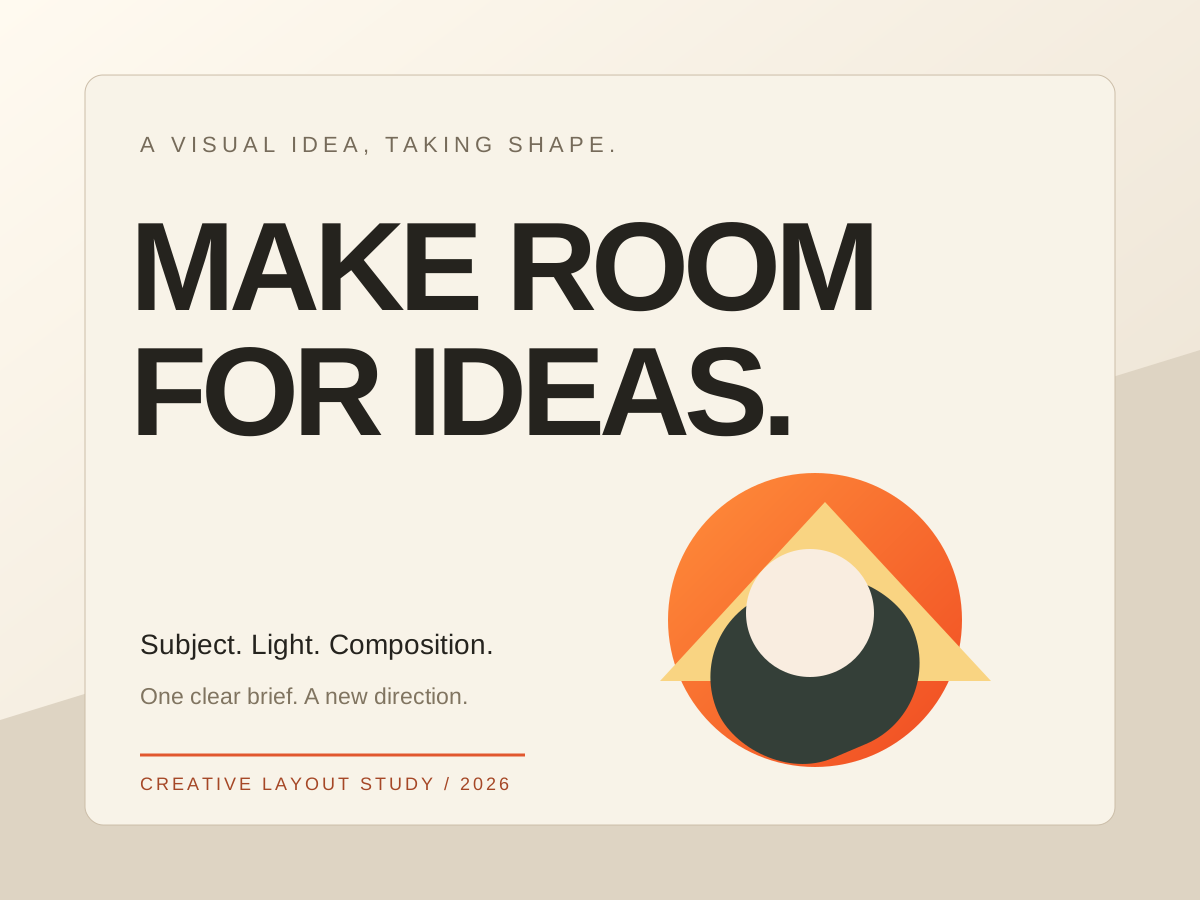
Creative studies in photography, editing and graphic design.
Choose Flare for fast everyday image creation, from creator and social content to product concepts and rapid visual exploration. It is the practical starting point when iteration speed matters.
Choose Sunburst for demanding image creation and precise edits. It is suited to campaign, brand and product visuals where the subject and small changes need closer review.
Choose Economy for everyday product concepts, social images and reference studies at 1K. It offers a smaller set of output options and a clear per-image price for PNG.
What GPT Image 2.6 can help you create and edit
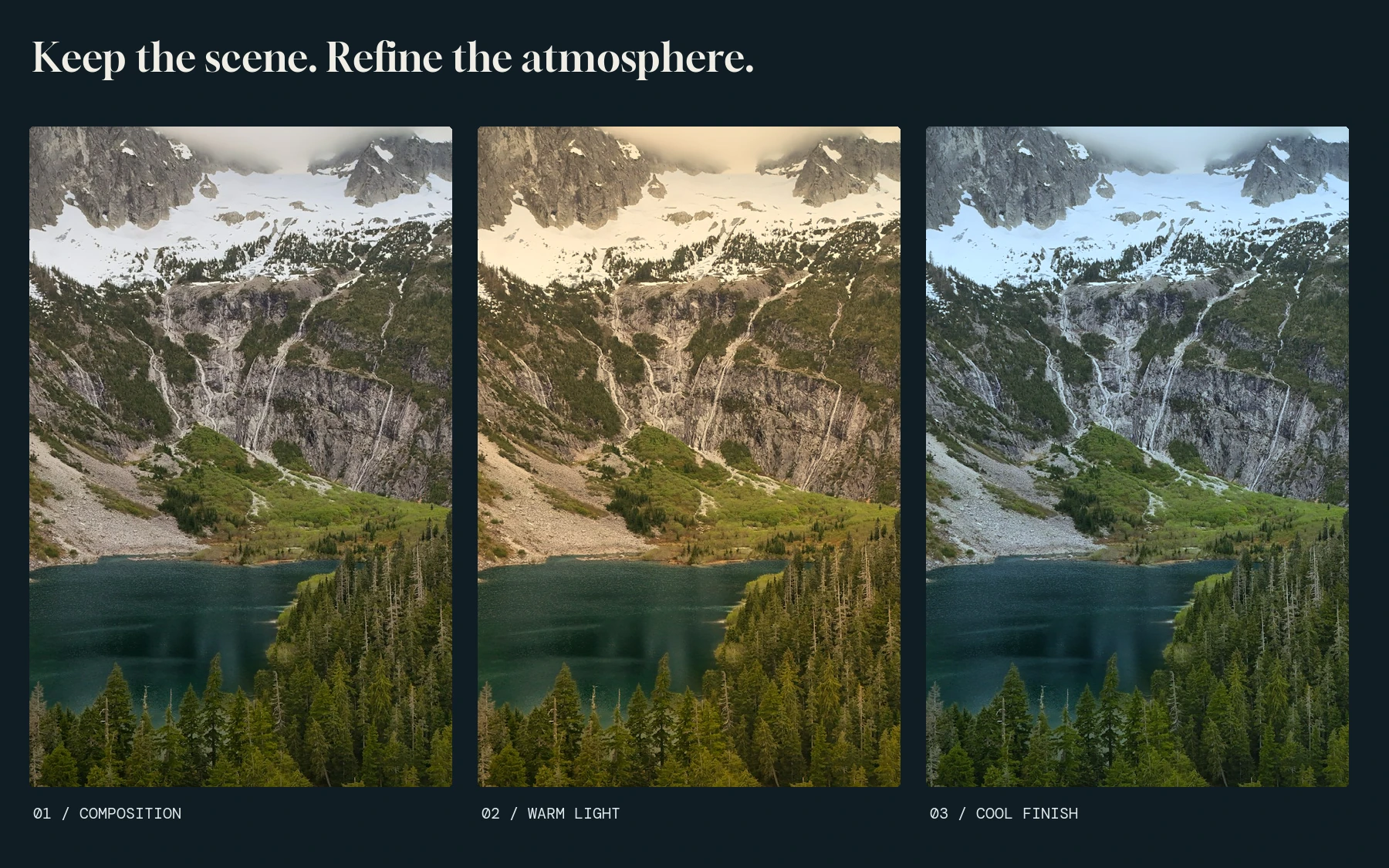
Upload a reference and name the faces, objects, places or layout to keep. Describe the new scene or style separately, then compare the result with the source.
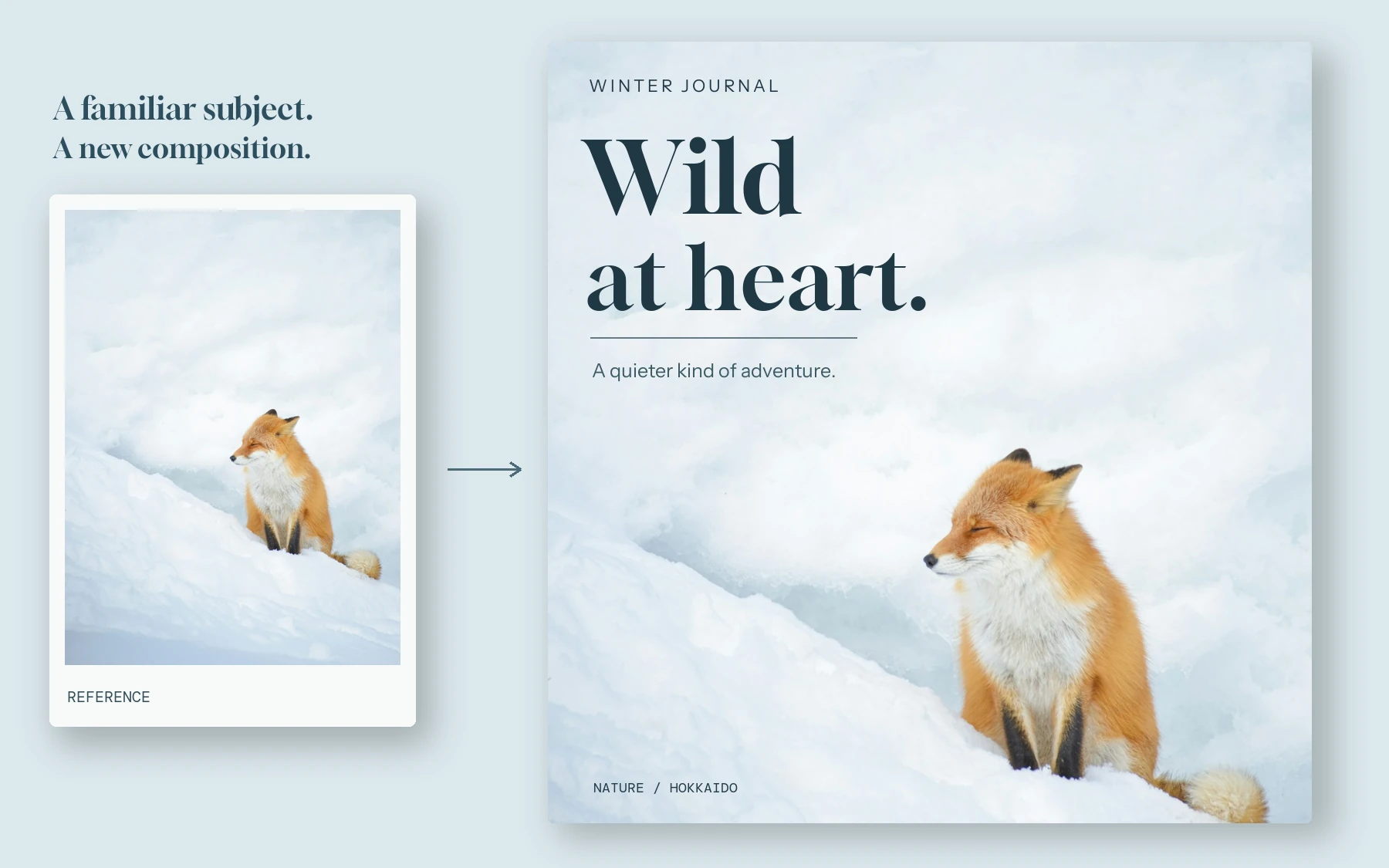
Ask to change a background, color, material, text area or individual object. State what should remain in place and inspect the surrounding details afterward.
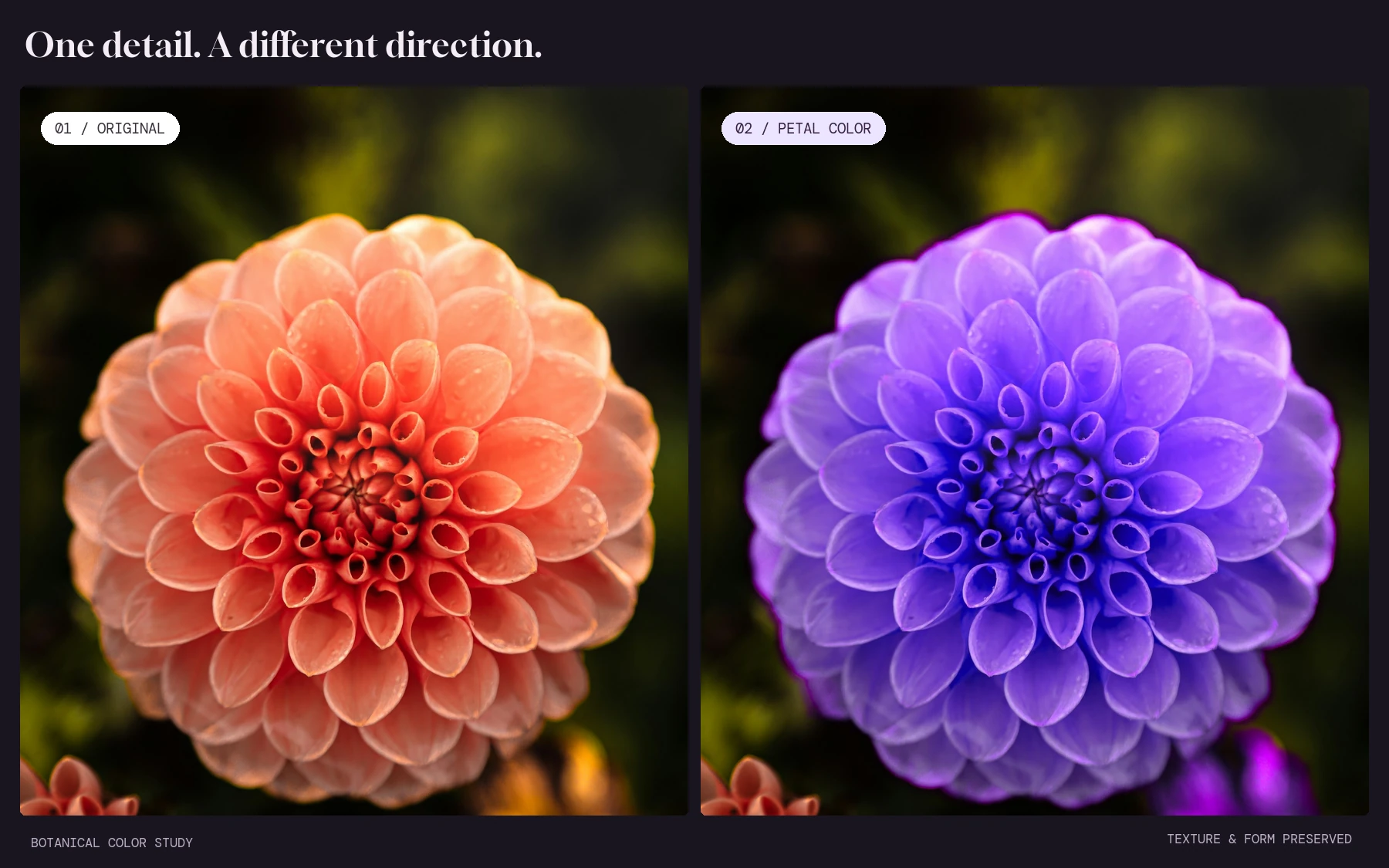
Use the latest result as a reference for the next task. Change a small set of details each time so you can compare the subject, composition and earlier decisions.
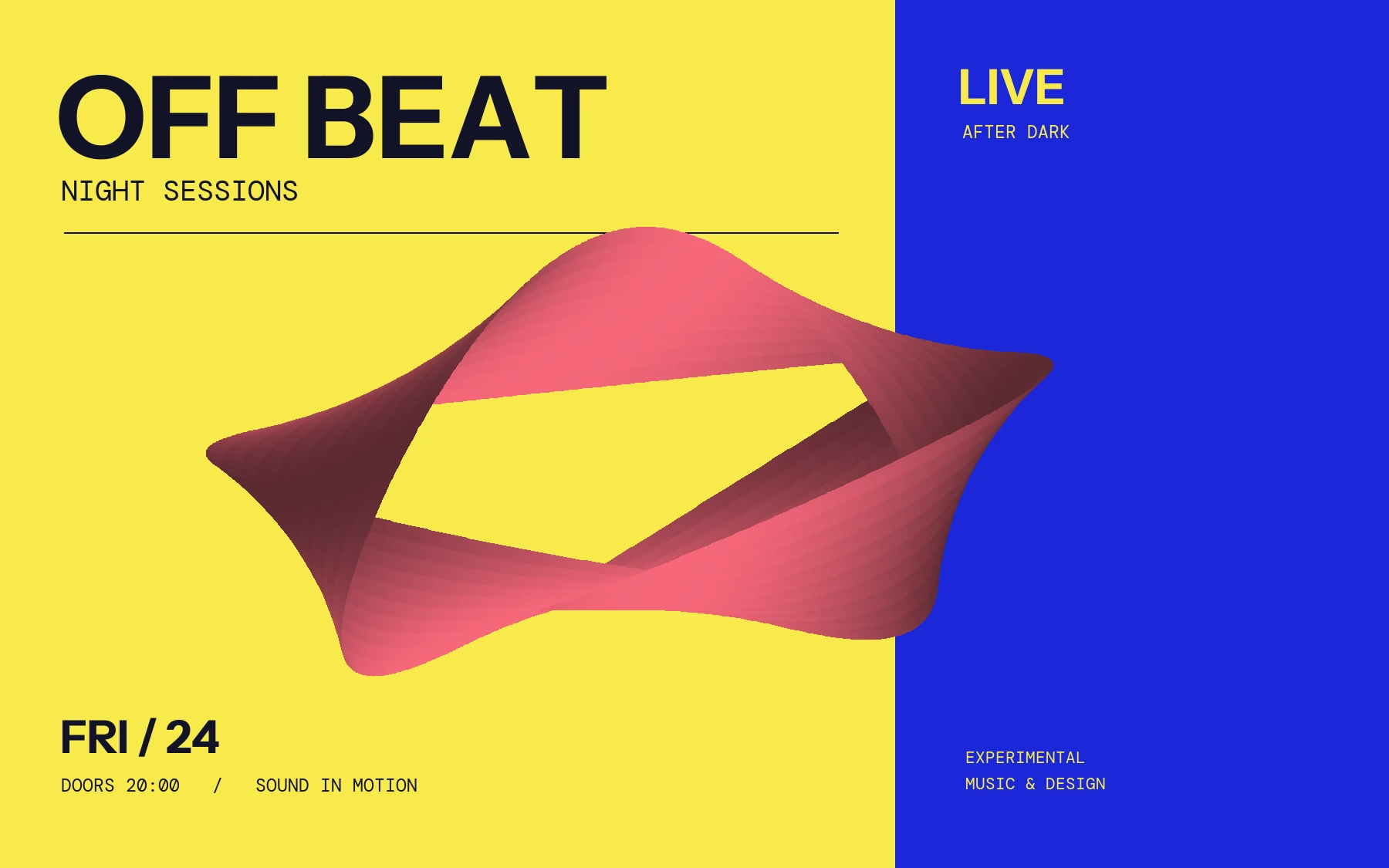
Break down multiple subjects, spatial relationships, text placement, style and transparency into clear instructions. Check the final wording and layout before use.
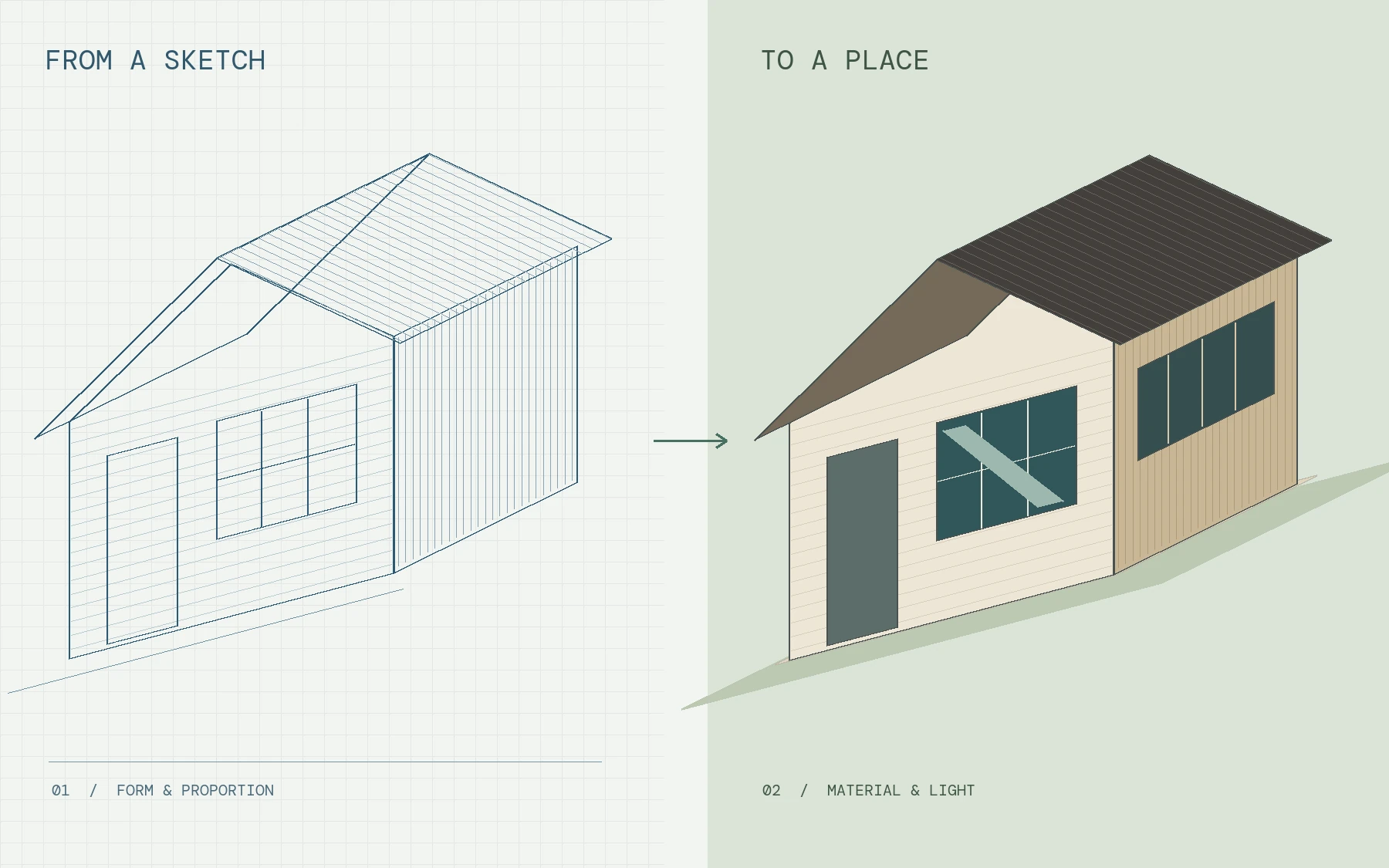
Upload a drawing through the regular reference-image input and explain the intended layout or object positions. This is a reference-image method, not a separate Sketch tool.
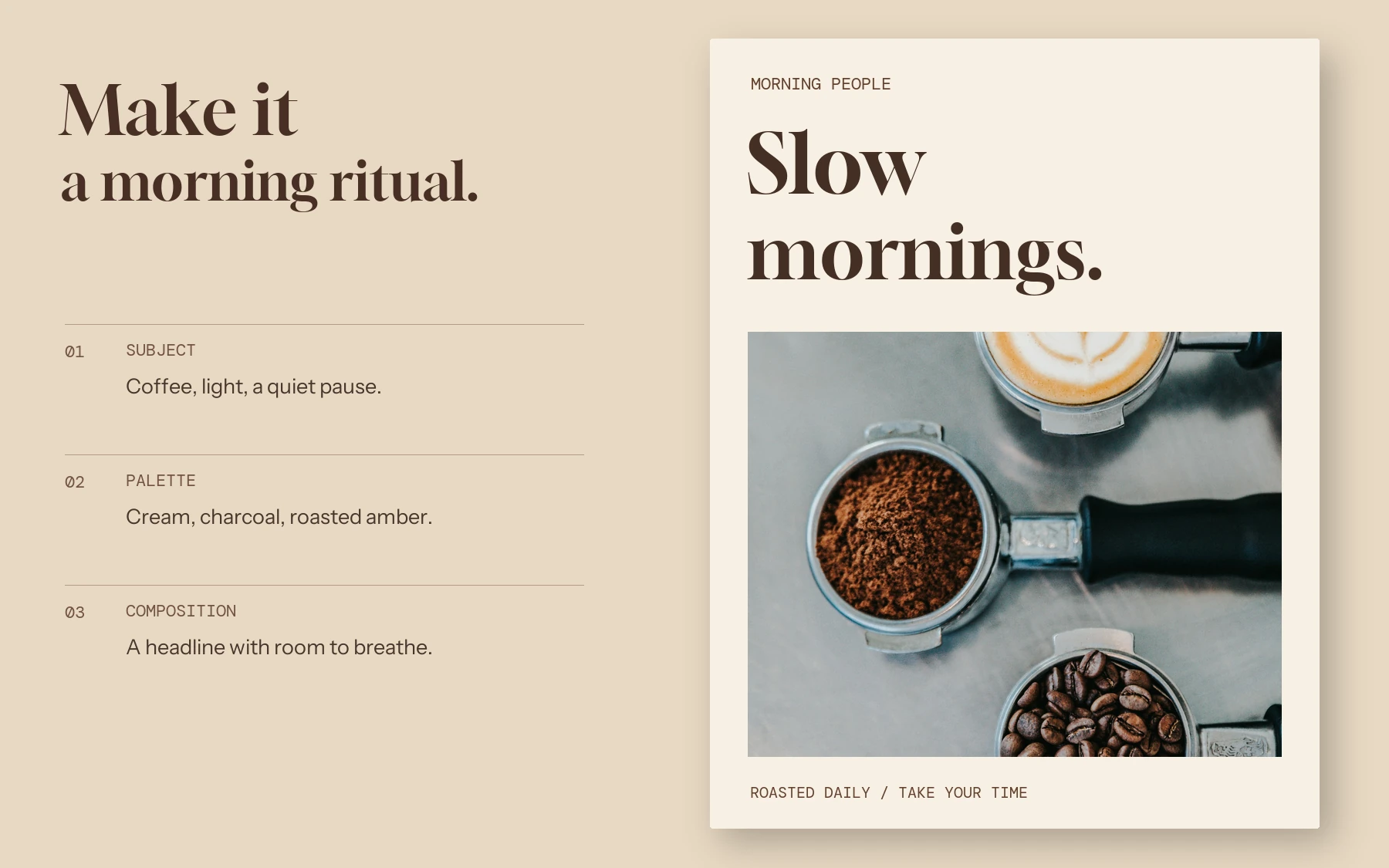
Prepare a structured brief for a poster, product scene or social graphic, including layout, copy space and style, before submitting the prompt.
Choose by the work you need to do. GPT Image 2.6 adds Economy for everyday 1K images, while Flare focuses on quick layouts and Sunburst on detailed refinement. The settings below help you decide when to use each generation.
| Feature | GPT Image 2.6 | GPT Image 2.5 |
|---|---|---|
| Model choice | Flare for fast layouts, Sunburst for detailed edits, and Economy for everyday 1K images. | Flare for everyday creation and Sunburst for more detailed image work. |
| Output size | Flare and Sunburst: 1K, 2K or 4K. Economy: 1K only. | Both variants offer 1K, 2K and 4K. |
| Creative focus | Flare focuses on poster and product layouts; Sunburst on consistency through successive edits. | General image creation and reference-guided editing with two established variants. |
| Reference images | Use up to 16 references in an image-editing task. | Also accepts up to 16 reference images. |
| Background | Choose automatic, opaque or transparent backgrounds. Transparent output requires PNG, WebP or GIF. | Background selection is also limited to 1K. |
| Output format | Flare and Sunburst support PNG, JPEG, WebP, GIF and SVG. Economy supports PNG, plus GIF in text-to-image mode. | PNG output in the current workspace. |
| Creation modes | Start from text or edit with reference images. | Text-to-image and image-to-image. |
| Credits | Economy 1K PNG is 4 credits per image. Check the current quote for other settings. | Check the quote for the selected model and resolution. |
From prompt to finished image
Choose Flare, Sunburst or Economy, then select text to image or image to image.
Write the subject, composition and visual details. For edits, upload references and name what must stay the same.
Choose the aspect ratio, size, format and quality, then review the quote.
Review the credit quote, generate, and inspect the result before downloading or editing again.
Built for workflows that need clear visuals, precise text, consistent details and reliable image editing.
Explore poster layouts, social ads and campaign graphics. Specify the headline, subject and space for copy.
Draft product scenes with different lighting, materials and backgrounds. Check labels and product details before use.
Use the latest image as a reference for a focused change. Compare the subject, colors and background after each revision.
Prepare related visual concepts with your brand colors and layout references. Review typography and logo placement in the result.
Explore interface mockups, presentation visuals and diagrams. Check small labels, spacing and information structure.
Draft product, lifestyle and promotional imagery for catalogs and storefronts. Review the product appearance and any visible branding.
Create product scenes, posters, campaign concepts and visual references from a written brief, or use your own images to guide an edit. Flare, Sunburst and Economy offer different combinations of workflow and output settings. Review the result before using it in a finished design.
Start with Flare when you want to explore a layout quickly. Choose Sunburst when the task needs closer attention to detail or a sequence of careful revisions. Economy is the practical 1K option when you are preparing everyday visuals and want a clear PNG price.
Use text-to-image to begin from a description. Use image-to-image when you already have a product shot, drawing or composition that should guide the next image. Explain both the change you want and the details you want to retain.
Describe the subject, setting, light and composition first, then name the style or material that matters. For a poster, put the exact headline in quotation marks and say where to leave room for text. For an edit, keep the instruction focused on one clearly described change.
An image-editing task accepts up to 16 references. Use PNG, JPEG or WebP files up to 30 MB each in this workspace. With several references, identify their roles in order, such as the product from image 1 and the setting from image 2.
Economy creates 1K images. Flare and Sunburst offer 1K, 2K and 4K, so you can select a size for a draft, a product detail or a larger composition. Higher resolution can change the credit quote; check it after changing the output size.
Choose automatic, opaque or transparent backgrounds. Transparent output requires PNG, WebP or GIF.
Flare and Sunburst support PNG, JPEG, WebP, GIF and SVG. Economy supports PNG, plus GIF in text-to-image mode.
Put the exact wording in quotation marks and describe where the headline and smaller text should appear. Keep important copy concise. Check spelling and spacing in the result, then use the image as a reference for a focused correction.
Economy 1K PNG is 4 credits per image. Check the current quote for other settings. Credits are reserved from an estimate and settled from actual usage; the final charge never exceeds the reserve.
Your account’s creations library is the place to review completed results and download a chosen image. Use a result as a new reference, or choose create again to restore the original prompt and supported settings. Compare each revision with the source before continuing.
Check small text, product labels, edges and any detail you asked the model to preserve. A reference guides the composition but does not guarantee that every pixel stays unchanged. For a more controlled revision, keep the latest suitable result and describe a smaller next change.
Image creation and editing with three ways to work. Use Flare for quick layouts, Sunburst for careful refinement, or Economy for 1K everyday visuals. Start from a prompt or up to 16 reference images.